Getting started
Snap Build turns a description into a working web app: you describe it, check the plan, then build and try it. No password is needed, and signing in the first time creates your account and your first workspace.
Sign in
- Go to Log in.
- Choose one way in:
- Continue with Google or Continue with Microsoft, if shown.
- Type your Work email and press Email me a sign-in link. Open the link within 15 minutes.
- Sign in with SSO, if your company uses single sign-on.
- If your company requires SSO, an email link sends you to your company's sign-in page instead.
Your workspace
A workspace holds your apps, your team and your plan. Your first one is named after you. To make another, open the workspace menu in the sidebar and choose New workspace.
Find your way around
| Where | What it's for |
|---|---|
| Home | Describe a new app, start from a template, pick up recent apps |
| Apps | All apps in the workspace, filtered by All, Live or Drafts |
| Templates | Client portal, Expense approvals, Room booking, Sales CRM, Inventory tracker, Feedback board |
| Members | People, roles, sign-in settings and your plan |
| Ctrl K | Search apps and actions from anywhere |
| Profile menu | Switch light or dark, and sign out |
Building by chatting
You build by describing what you want in plain words, and each change that works is saved as a new version. New apps start with a plan you can check before anything is built.
Make a new app
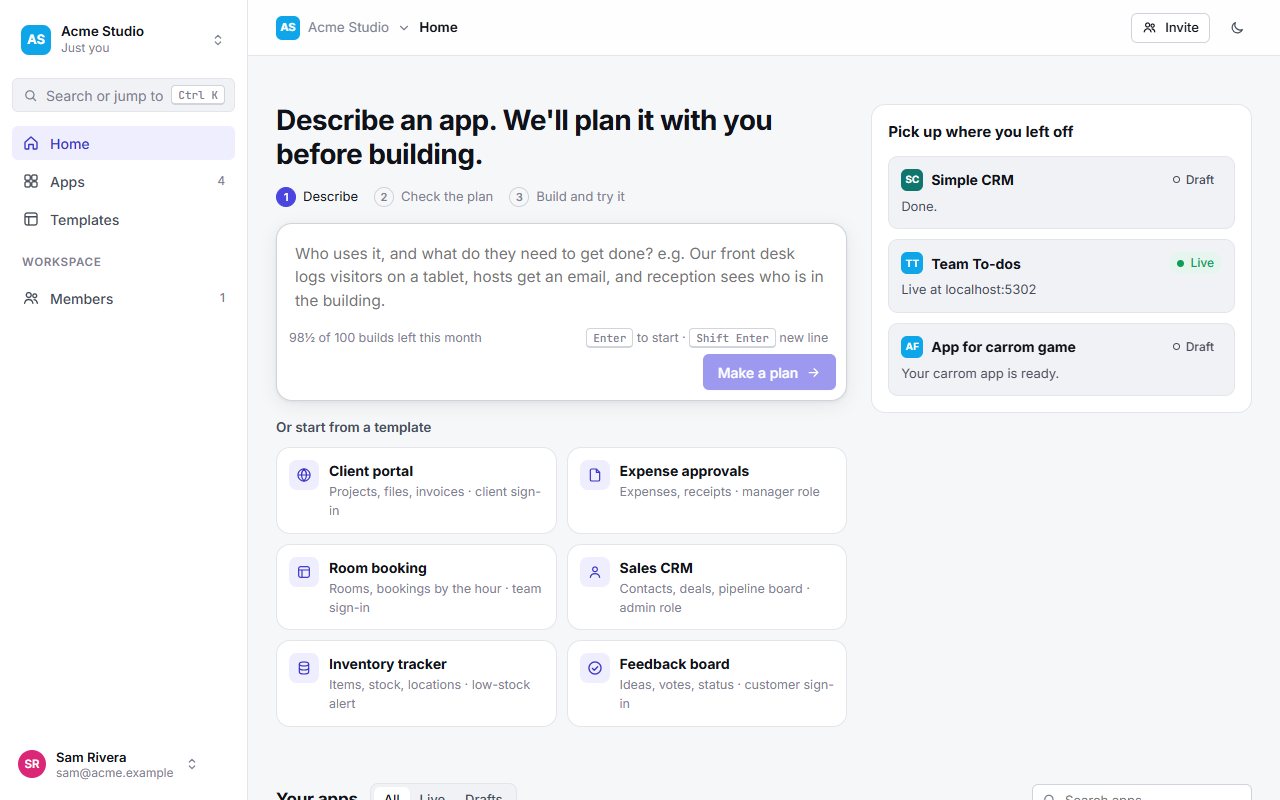
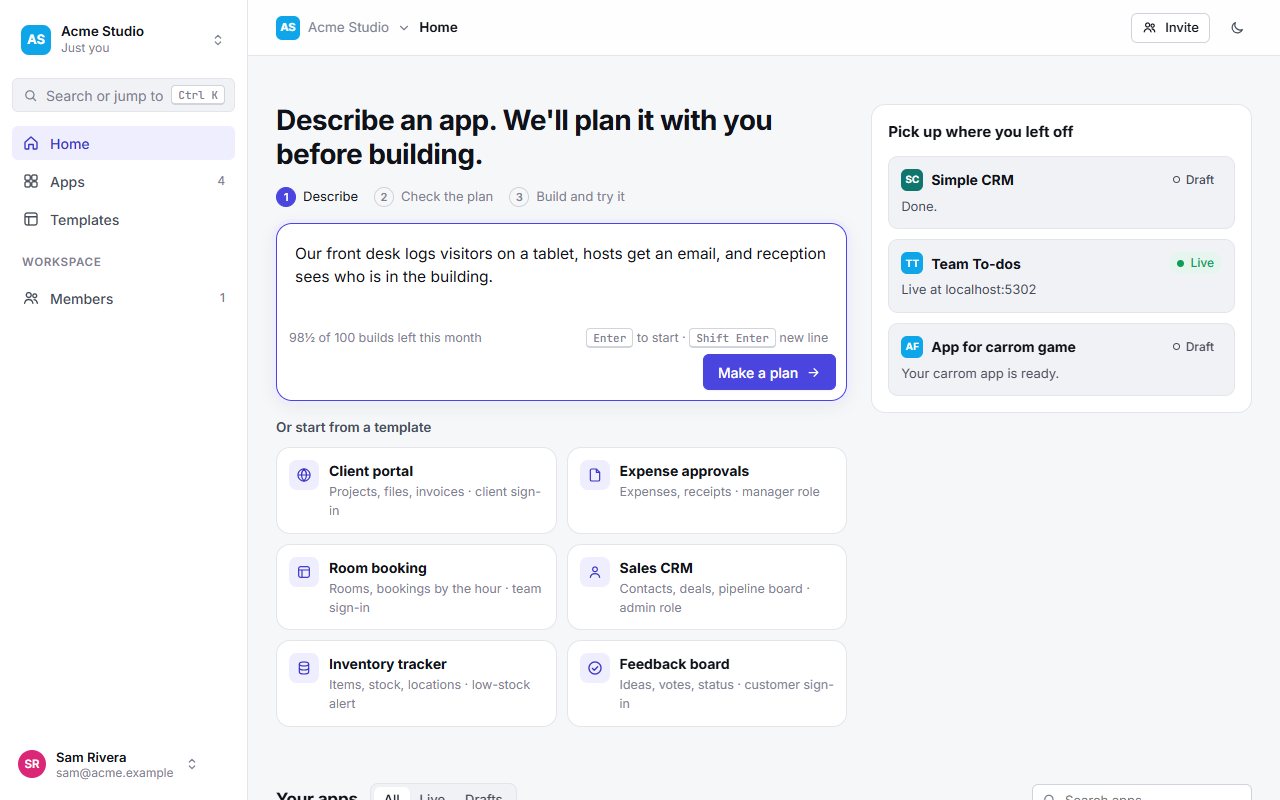
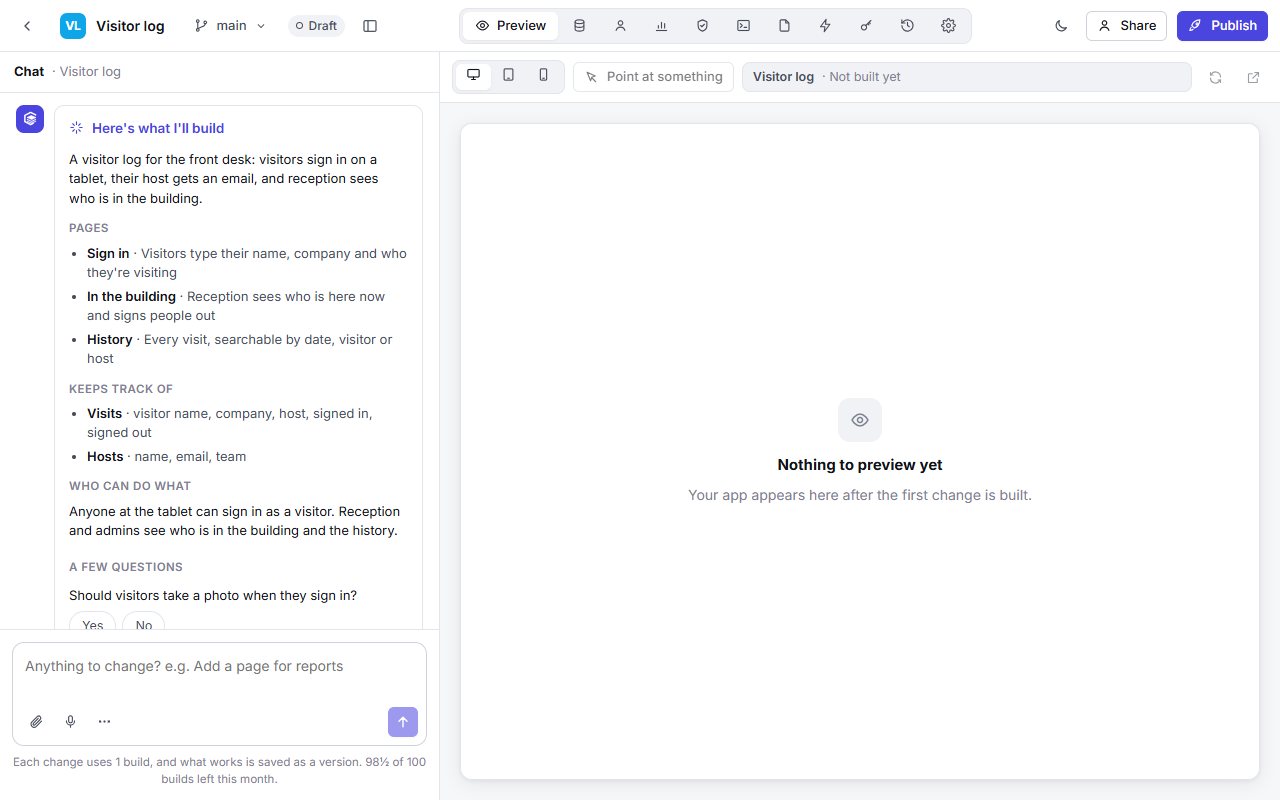
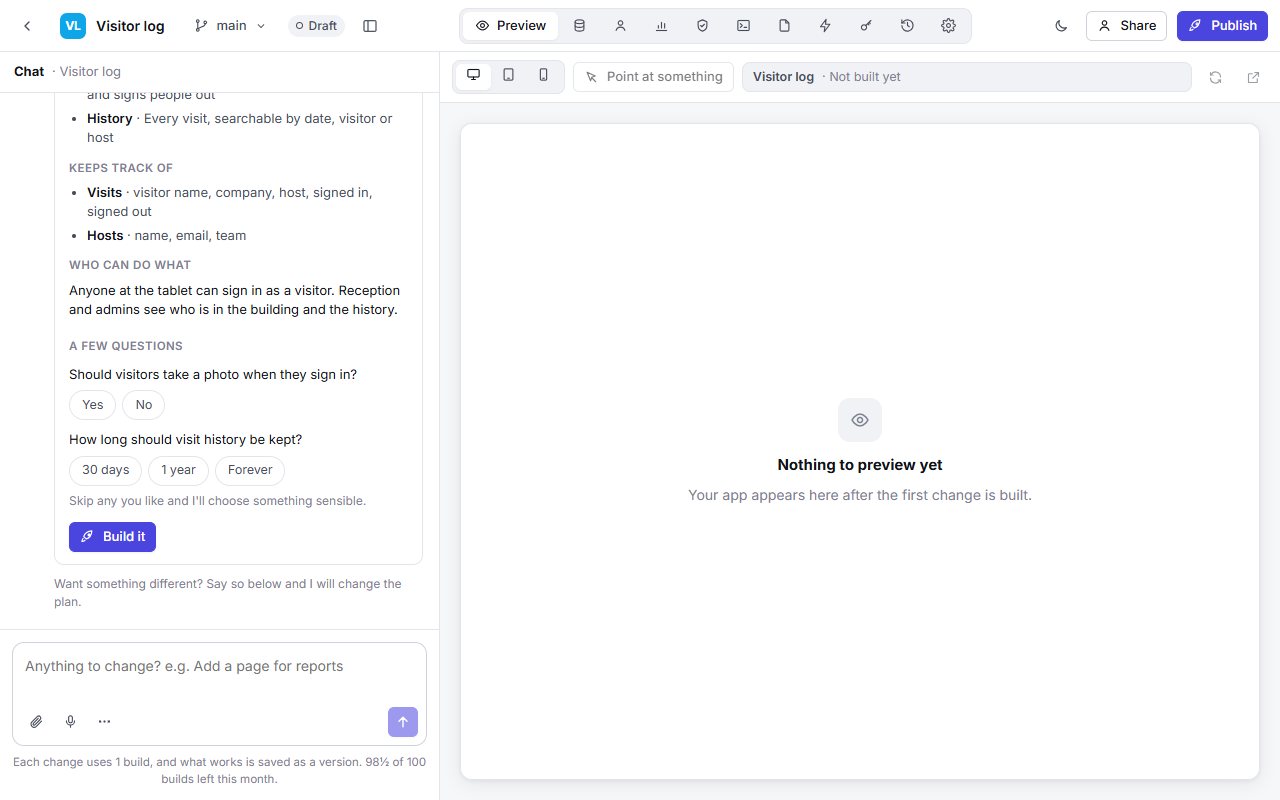
Want something different from the plan? Say so in the chat box and press Update the plan before building.
Change your app
Type in the chat box beside the preview. Requests work best when they say which page, what should appear, and who should see it. For example: “On the Orders page, add a Status column with New, Packed and Sent, and let only admins change it.”
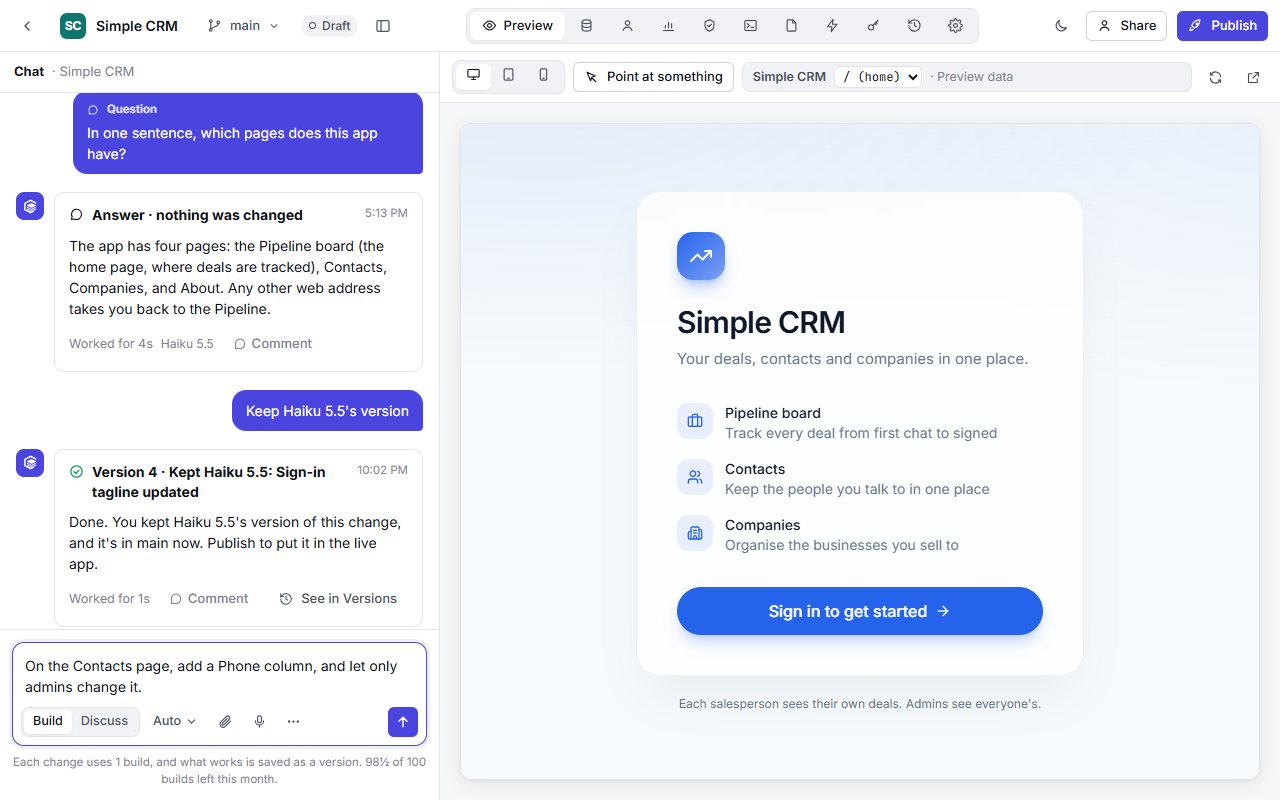
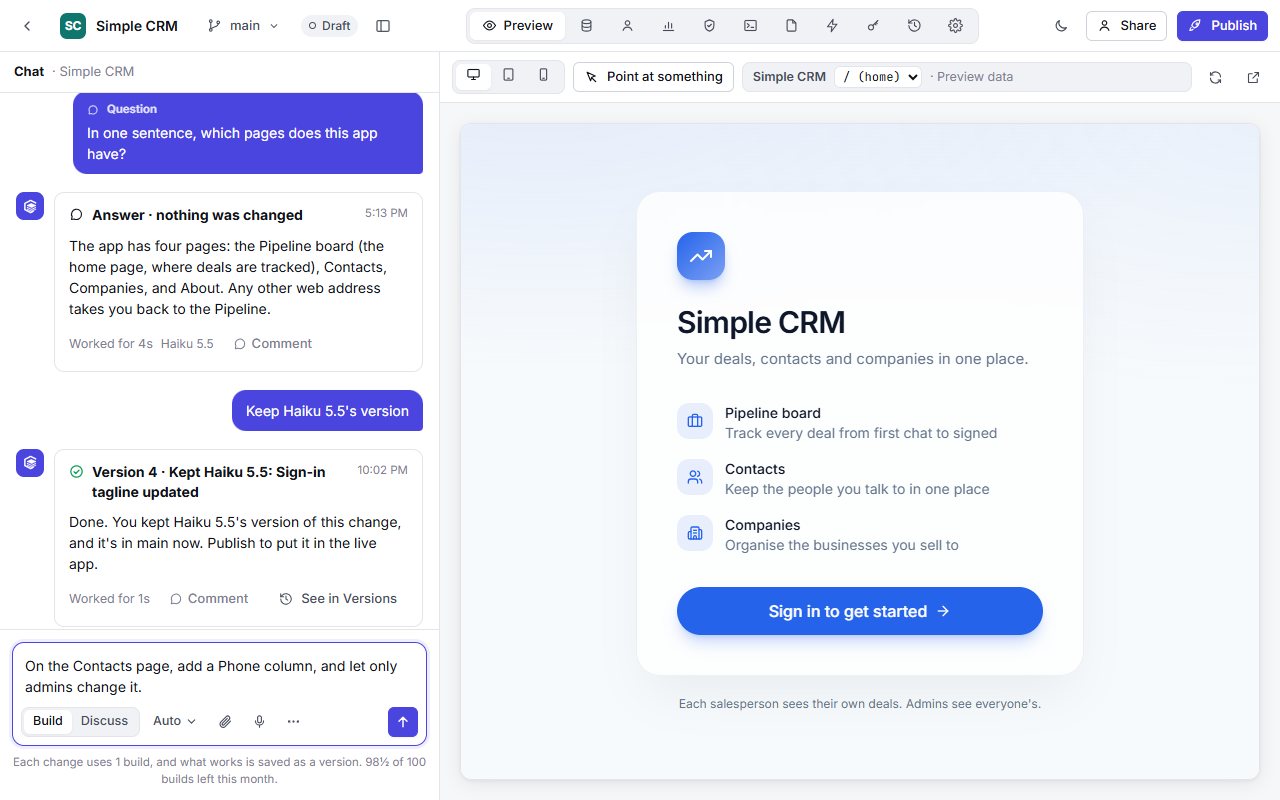
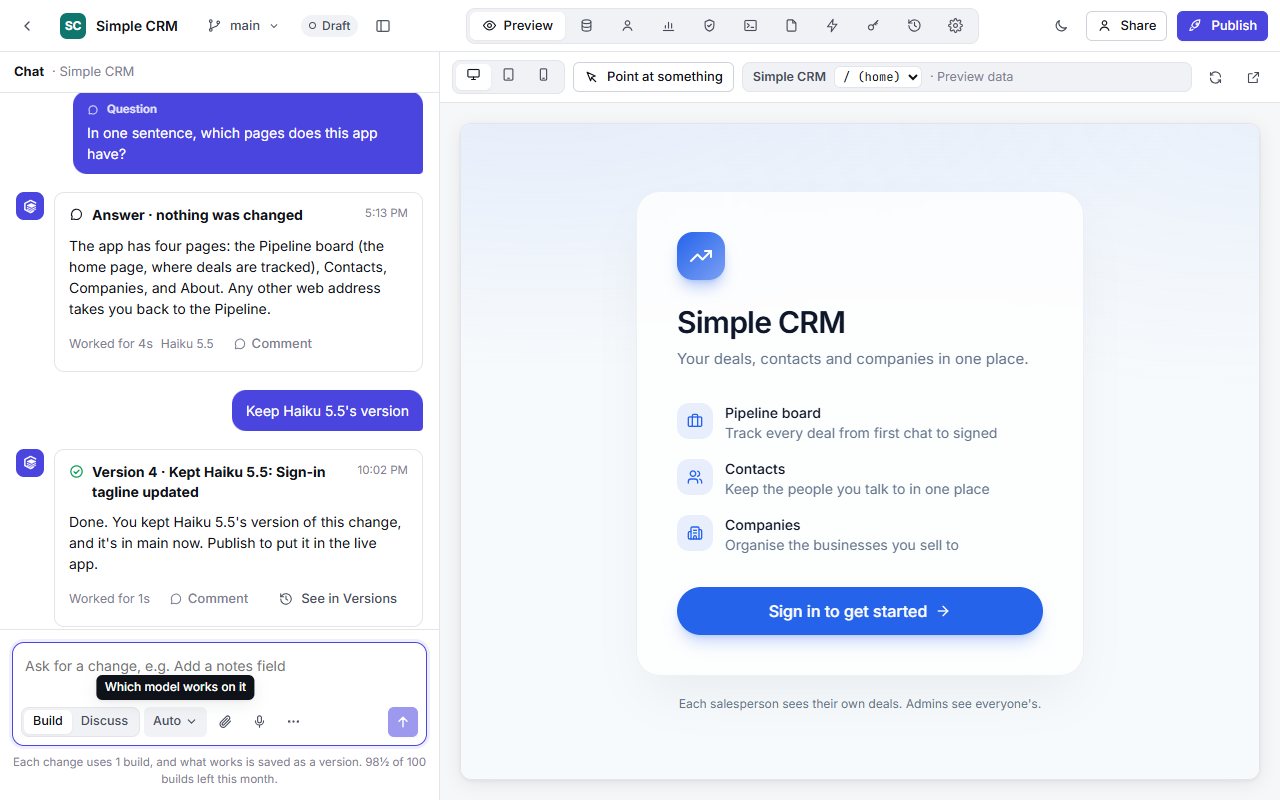
- Build changes the app. Discuss lets you ask a question or talk a change through: nothing changes and no builds are used. Press Build this to make what you discussed.
- Point at something in the preview, then click the part you want changed. You can also lock that file so the builder won't change it.
- Add a picture from your computer (or paste or drop it), from Google Drive, or from a Figma frame link. PNG, JPEG, WebP and GIF work.
- Speak your message with the mic button, where your browser supports it.
- Suggest as I type, in the chat's … menu, shows faint words to finish your sentence. Press Tab to take them, or Esc to dismiss them.
- Leave a Comment on any chat turn for teammates. The builder won't act on it.
Big apps
When an app is too big to build in one go, the plan splits it into two to five parts and says so. Each part is built, checked and kept before the next starts, so if a later part can't be finished you still have the earlier ones. The whole app uses one build.
Ask for what the app needs in plain words and the builder picks the right pieces: charts and totals, drag-and-drop boards, rules such as “only the record's owner can edit it” or “hide Salary from everyone but HR”, and server functions for logic that mustn't run in the browser, like checking stock or working out a price.
Choose a model
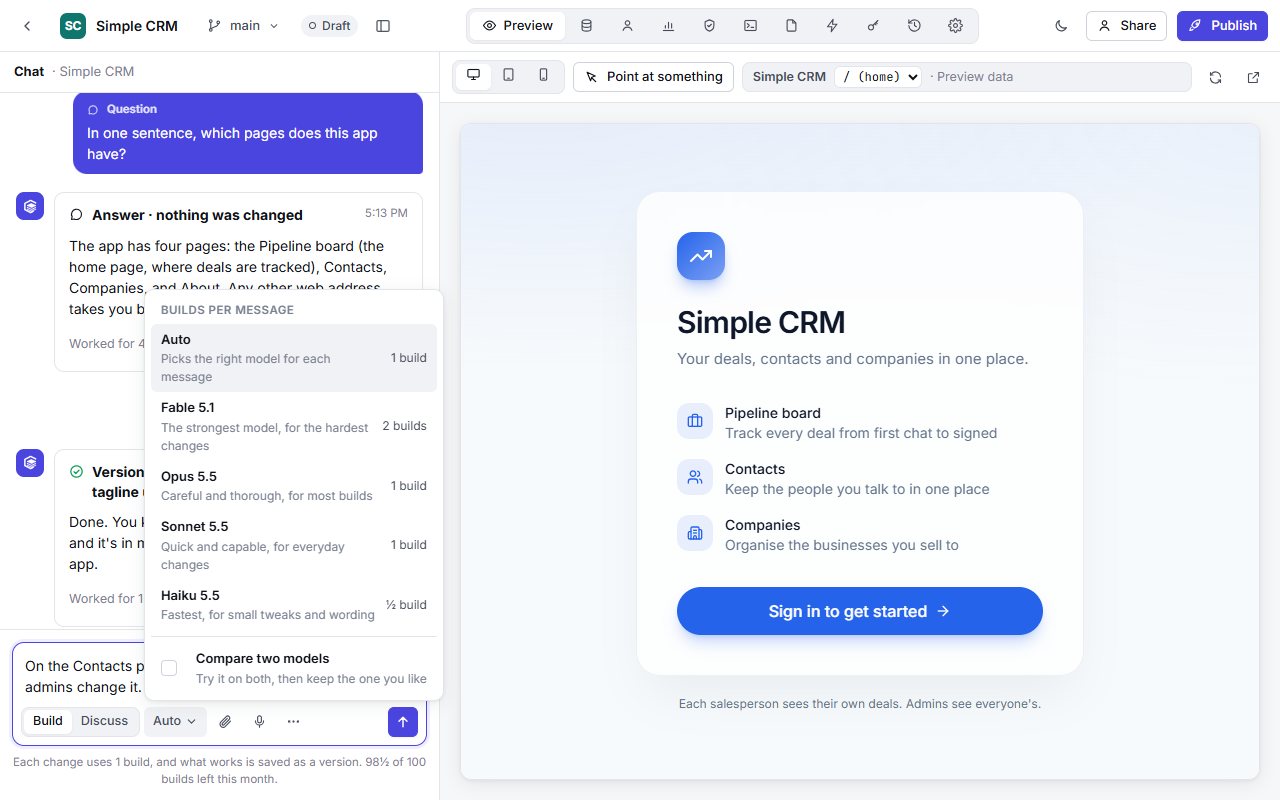
The model menu shows what each message costs in builds.
| Model | Good for | Builds per message | Plans |
|---|---|---|---|
| Auto | Picks the right model for each message | 1 | All |
| Haiku 5.5 | Fastest, small changes | ½ | All |
| Sonnet 5.5 | Quick and capable | 1 | All |
| Opus 5.5 | Careful and thorough | 1 | Pro and Team |
| Fable 5.1 | The strongest, for the hardest changes | 2 | Pro and Team |
Preview, versions and branches
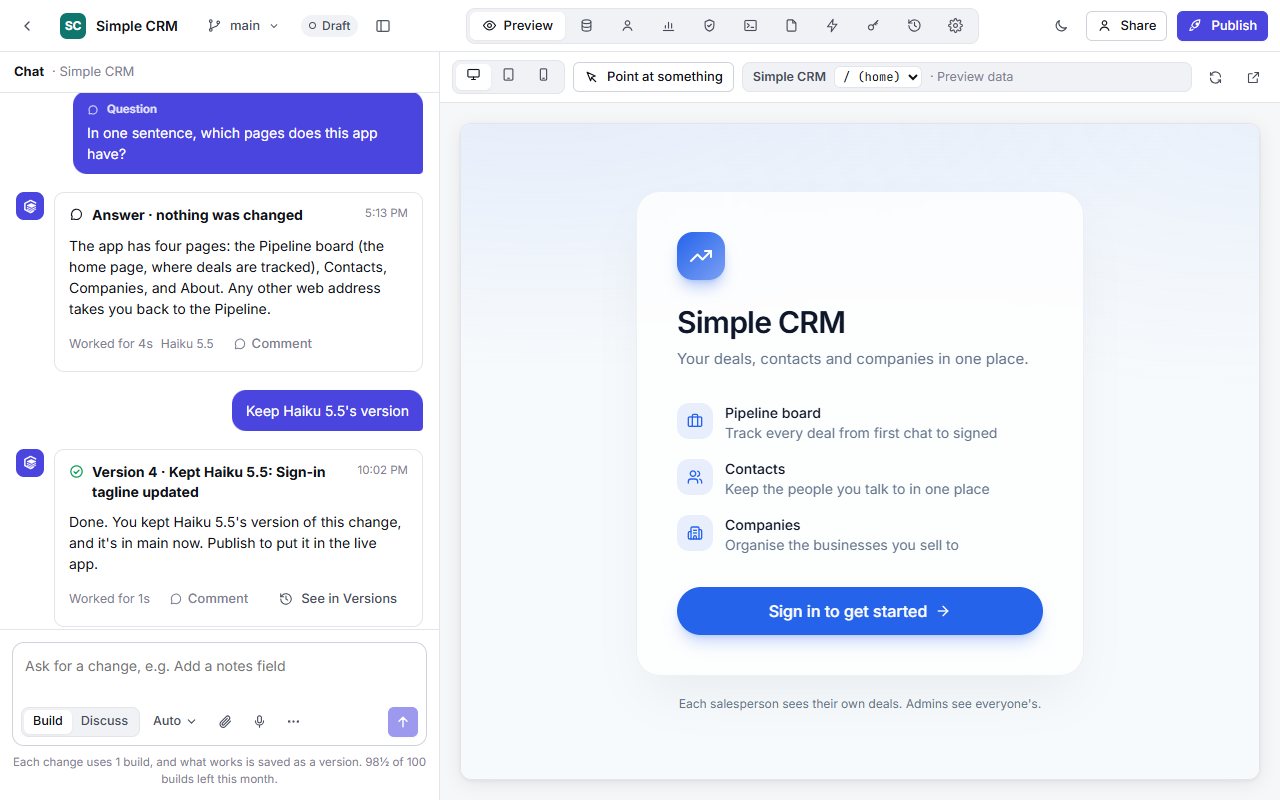
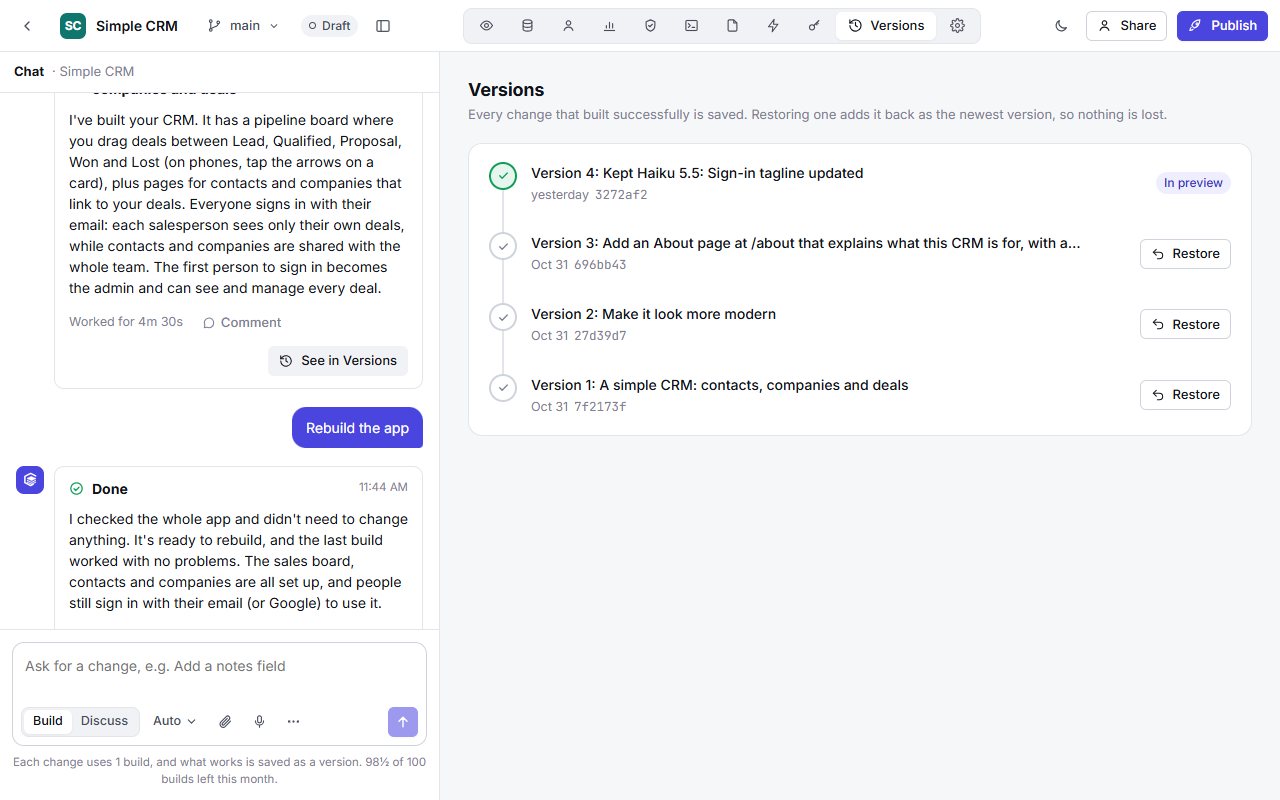
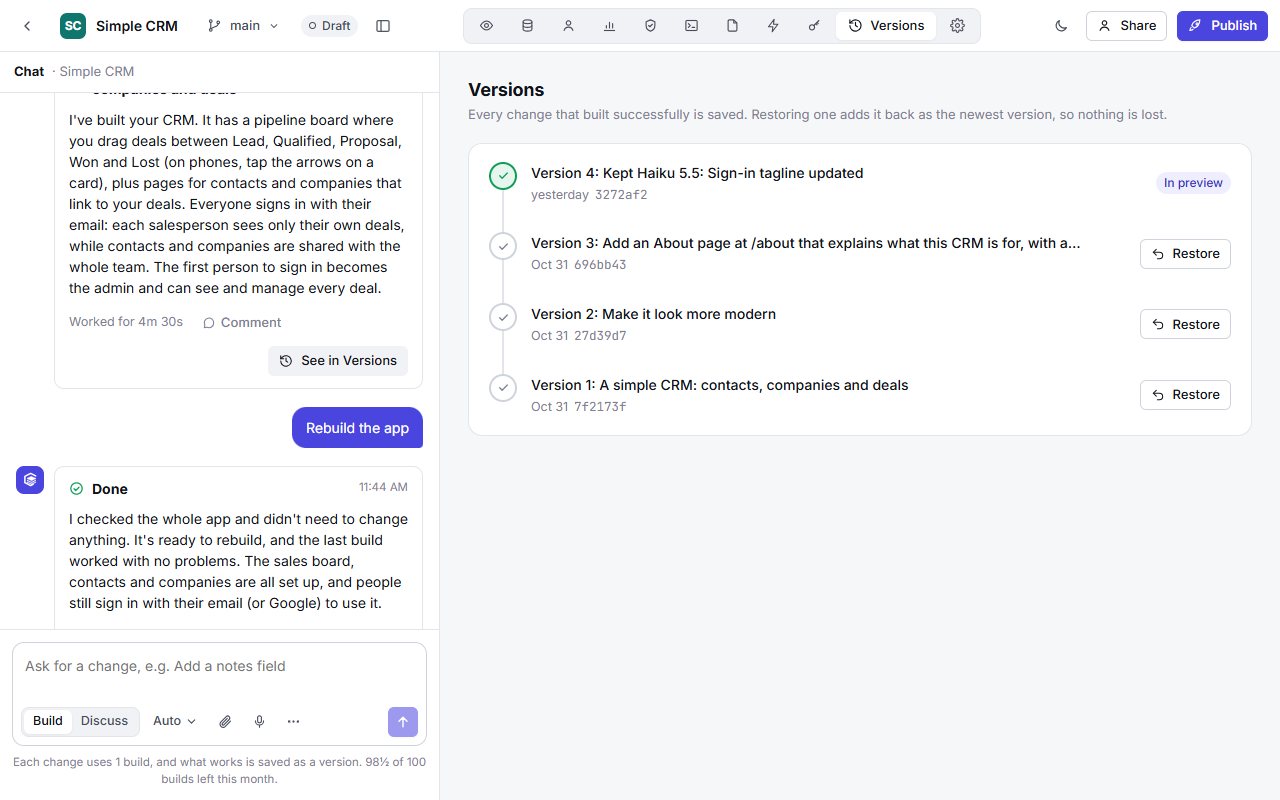
Nothing you build is lost: every change that works is saved as a version, and the live app changes only when you publish.
Preview
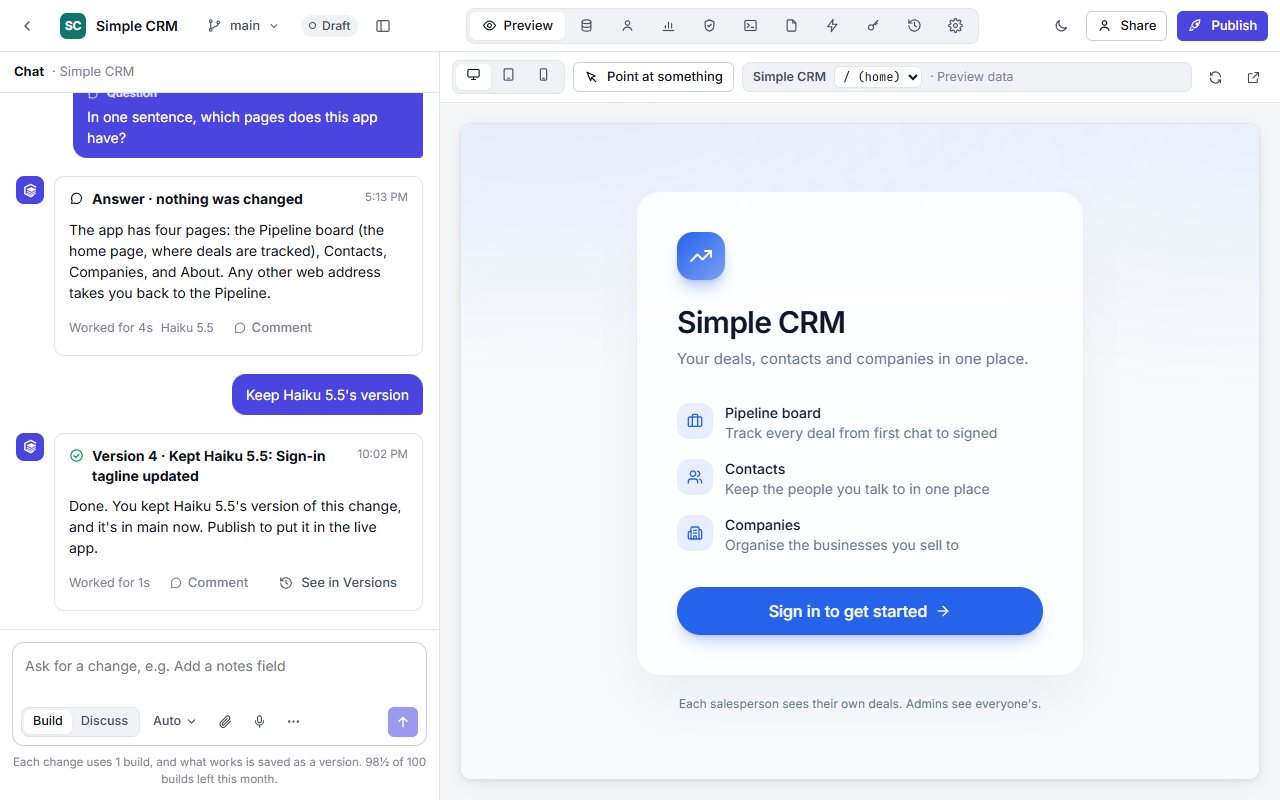
The Preview tab shows your app as you build. Switch between desktop, tablet and phone sizes, pick a page, or open it in a new tab. While a change builds, you see the last working version.
Go back to an earlier version
Try bigger changes on a branch
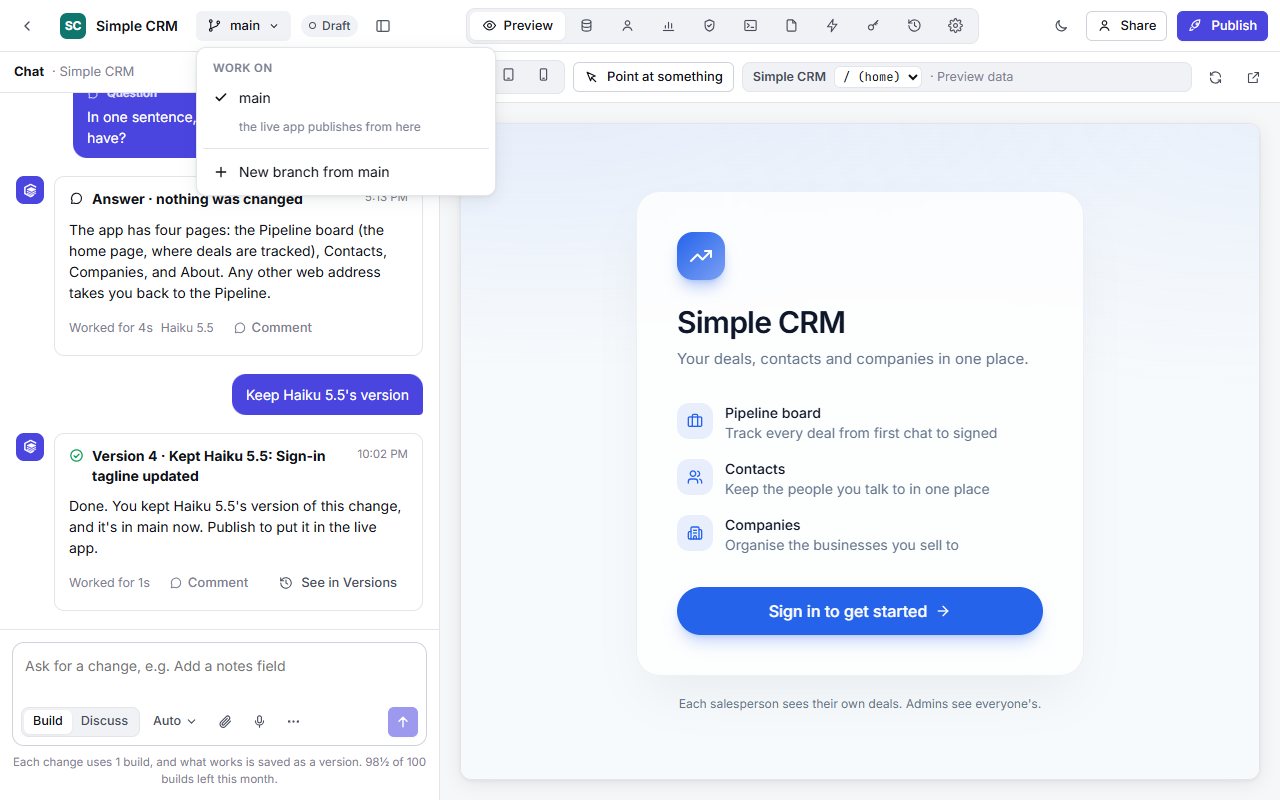
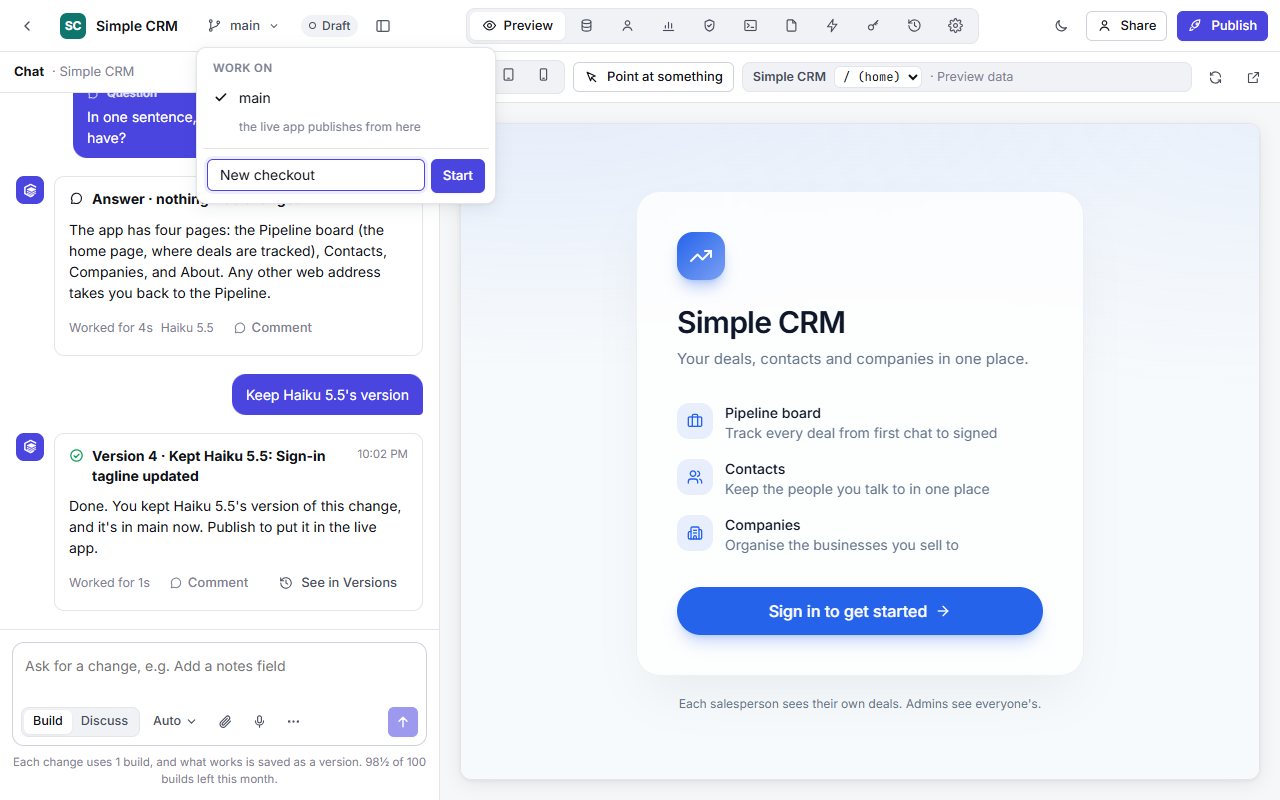
Changes now go to the branch. When you're happy, open the branch picker and choose Merge into main, or Discard branch to drop it.
Compare two models
On Pro and Team, one request can run on two models, each on its own branch, so you keep the better result.
- In the model menu, tick Compare two models and choose Model A and Model B. Both builds are used.
- Send your message. The two models work one after the other.
- On the Comparing card, press Show on each side to see it in the preview.
- Press Keep this one, or Keep neither.
Your app's data, users and tools
Each app has tabs beside Preview for its records, the people who use it, and how it runs. On a narrow screen they sit under More views.
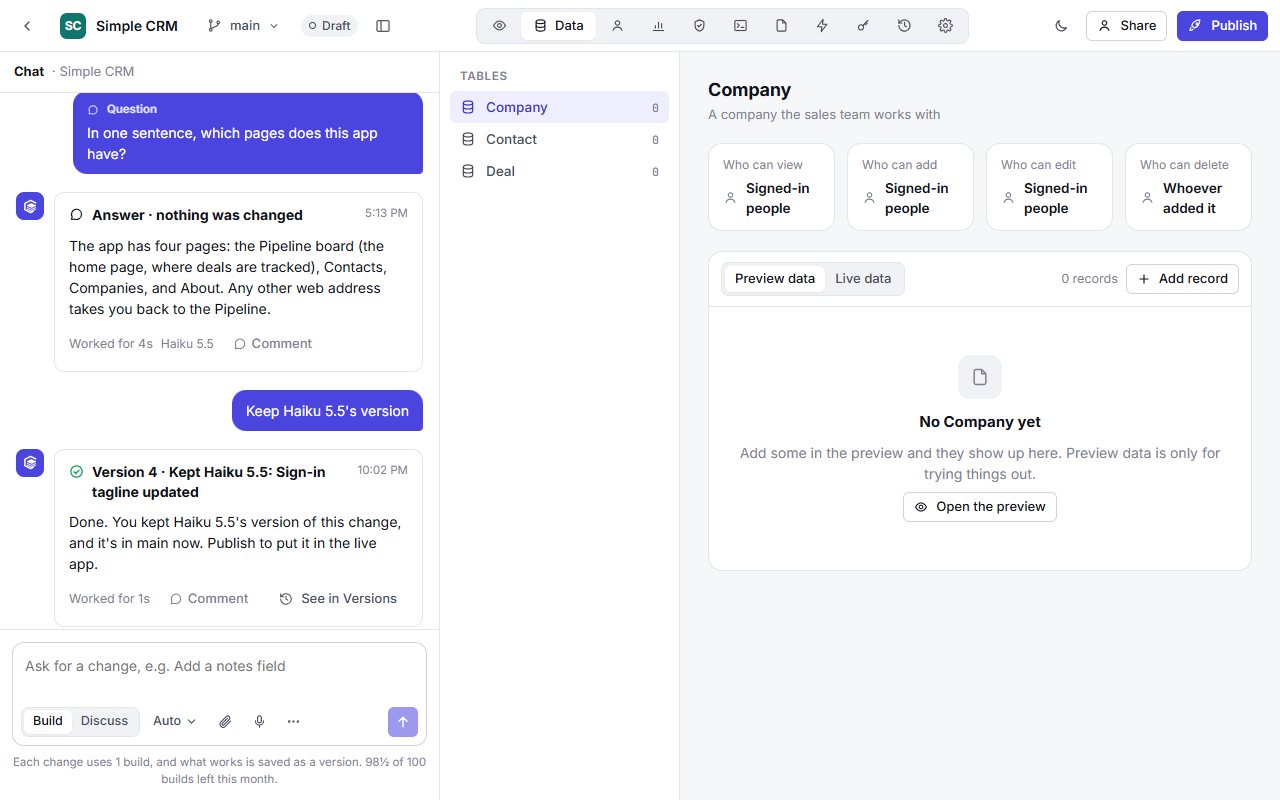
| Tab | What you can do |
|---|---|
| Data | Browse each table and add, change or delete records. Preview data and live data are kept apart; live data starts empty. |
| Users | See who signed in to your app, make people admins or remove them. People in your workspace are the app's admins. |
| Security | Check who can see and change each table. Fix it puts a fix request in the chat box. |
| Analytics | Visits to the live app, counted without cookies. Pro and Team. |
| Logs | The last 14 days, for the preview and the live app, with a Problems only filter. |
| Code | The app's files at any version. Lock a file so the builder won't change it. Pro and Team. |
| Automations | Run steps when a record is added, changed or deleted, or, on Pro and Team, every hour, day or week: send an email, call a webhook, change or add a record, or ask the AI. |
| Functions | The app's server functions: who may call each one, whether the live app has it yet, and today's calls, refusals and failures. |
| API | Make a key for preview or live data, read-only or read-and-change, for REST or as an MCP server. Pro and Team. |
| Settings | App name, builder instructions, locked files, domains, search and sharing, workspace, unpublish and delete. |
Publishing
Publishing puts your app online at your-app.sites.snap-build.com. It usually takes under a minute, and on Pro and Team you can add your own domain.
Publish your app
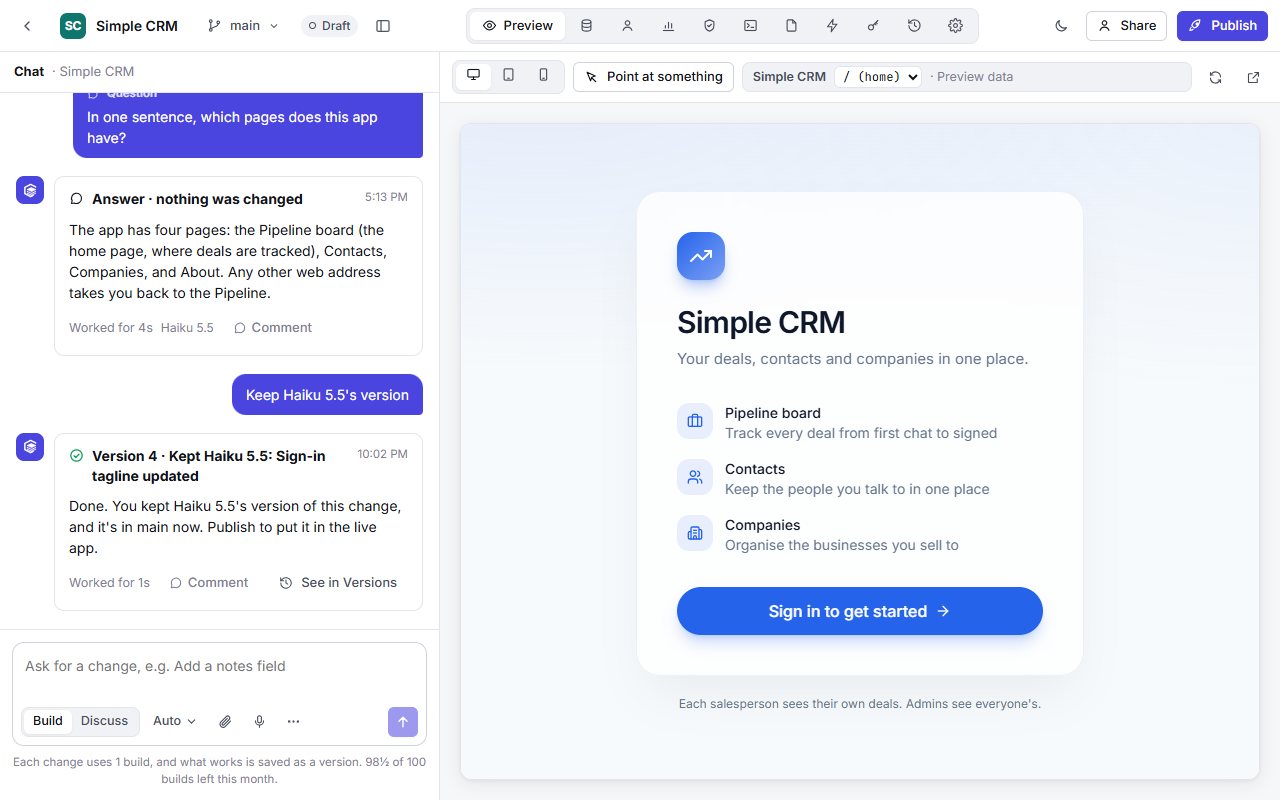
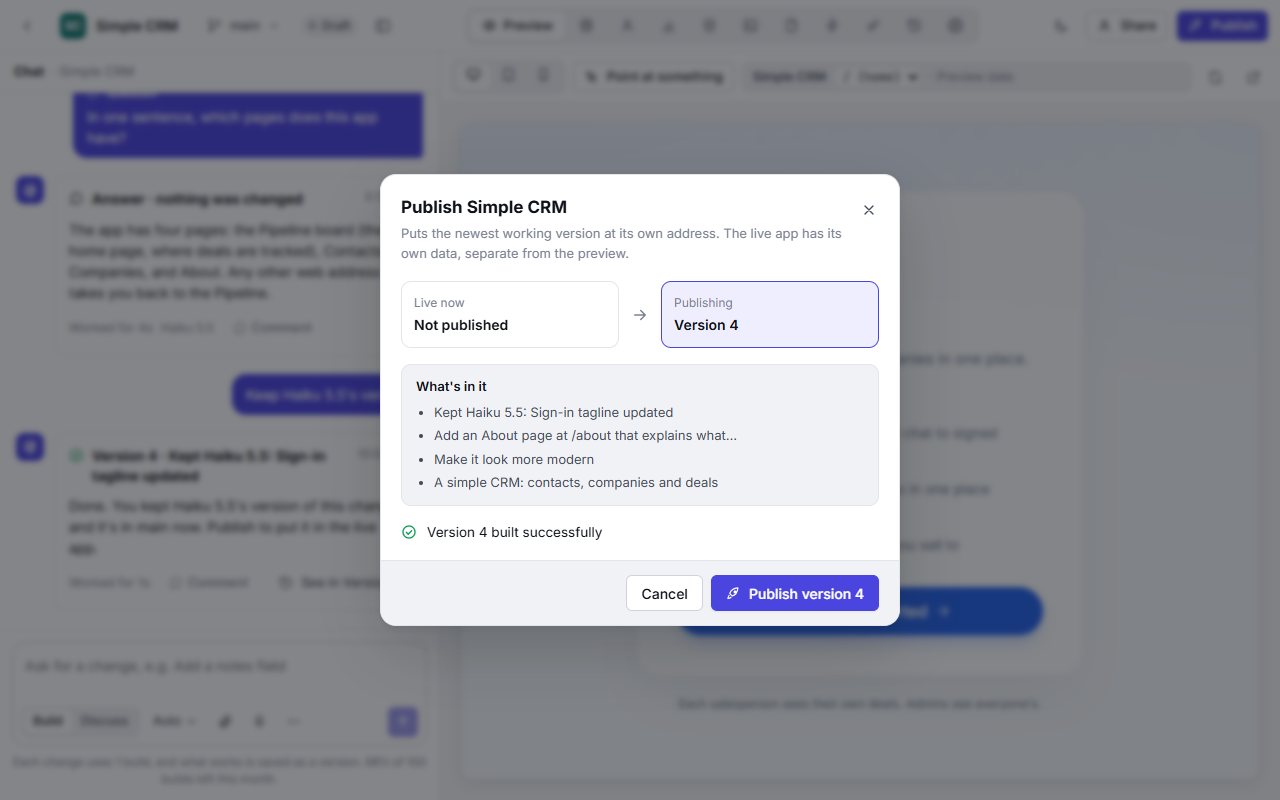
When it's done, copy the live address or press Open live app.
Use your own domain
- Go to Settings → Address and domains and add the domain, for example shop.yourcompany.com.
- Open DNS records and add them at your domain provider: a TXT record to prove you own it, and a CNAME (for a subdomain) or A records (for a root domain) to send visitors to your app.
- Press Check DNS, or wait: we check every few minutes and email you when it's Connected.
Search, sharing and going offline
In Settings → Search and sharing, set the title, description and picture people see in search results and links. Unpublish takes the app offline and keeps its live data. Delete app removes it with its versions, data and users, and can't be undone.
Android apps
On Pro and Team, a published app can become an Android app on Google Play, under your own developer account. It's made from the live version, with the same sign-in and data.
Build the Android app
- Publish the app, then go to Settings → Android app.
- Enter the App name and a Package name such as com.yourcompany.visits. The package name can't change after the first build, because it's the app's identity on Google Play.
- Upload a square Icon (1024 × 1024 is best), pick the opening screen colour, and tick the fingerprint or face unlock if you want it.
- Press Build Android app. It takes a few minutes and gives you For Google Play (.aab) and Try on a phone (.apk).
Each build is made from the live version, so publish your changes first and build again to put them in the Android app.
Notifications
Press Set up next to Notifications and add the two files from your own Firebase project (it's free): the google-services.json and a service account key. Then build again. The app can notify the person using it, and app admins can notify other people or a whole role, from the app or from an automation.
Send it to Google Play
- In Play Console, create the app and upload the first .aab yourself. Internal testing is fine. Google only lets apps it already has be updated by the builder.
- Press Connect next to Google Play and add a service account key that your Play Console lets release apps.
- After each build, pick a track and send that version straight to Google Play.
Working as a team
Everyone in a workspace can build, change and publish its apps. Owners and admins also manage people, sign-in and the plan.
Invite people
Go to Members, enter an email address and a role, and press Send invite. You can also press Invite in the top bar, or Share on an app.
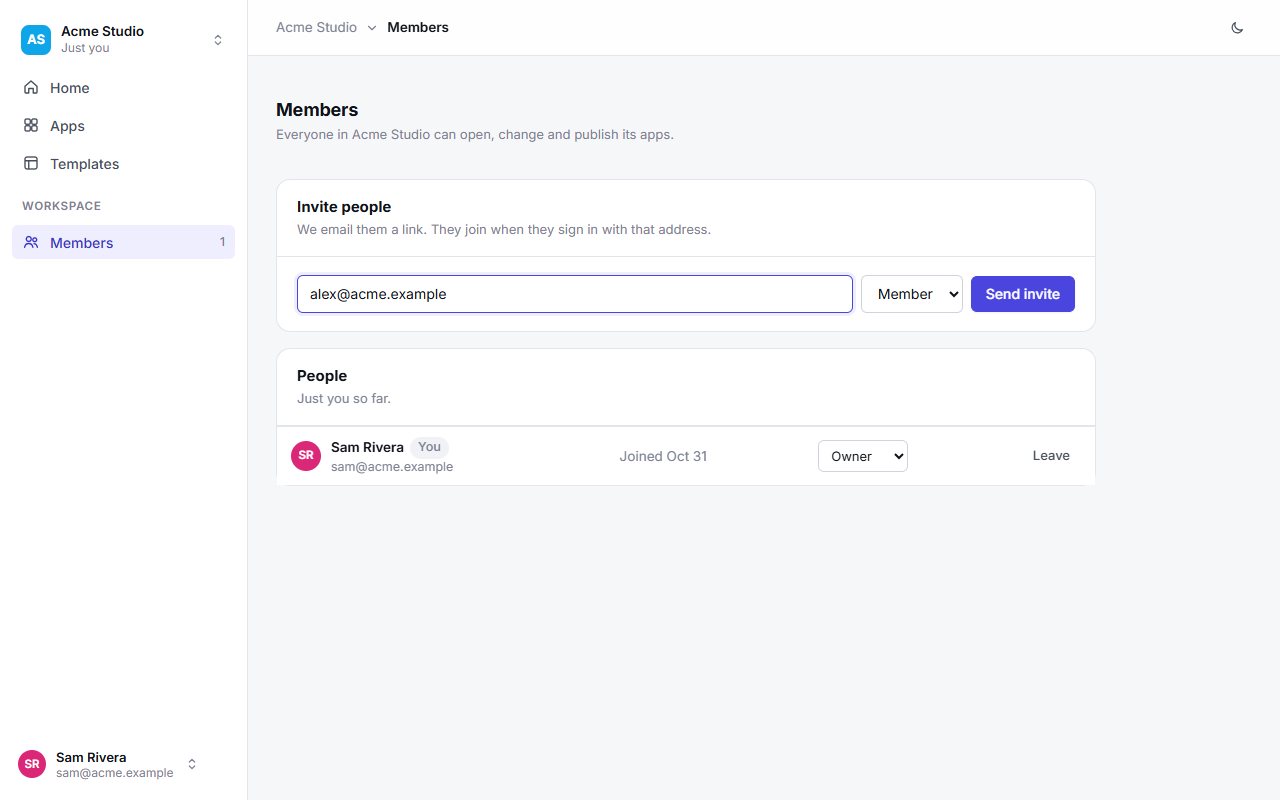
| Role | Can do |
|---|---|
| Member | Build, change and publish the workspace's apps |
| Admin | Also invite and remove people, rename the workspace and manage its plan |
| Owner | Everything, including managing owners and deleting the workspace |
Company sign-in
- Company email domains: people with your company's address join as members.
- Single sign-on: connect your identity provider with OpenID Connect or SAML, then Require SSO once it works. Pro and Team.
- Provisioning (SCIM): let your directory add people automatically. Pro and Team.
Move an app
In the app's Settings → Workspace, choose Move to. Its data, users, versions, domains and live site go with it.
Plans and billing
Each workspace has a plan with a monthly allowance of builds. Paid plans add more builds and the features below.
| Plan | Builds a month | Models | Compare two models |
|---|---|---|---|
| Free | 20 | Auto, Sonnet 5.5, Haiku 5.5 | No |
| Pro | 200 | All | Yes |
| Team | 100 | All | Yes |
| Enterprise | As agreed | All | Yes |
Prices are on the pricing page.
What paid plans add
Pro, Team and Enterprise add:
- Every model and Compare
- Custom domains
- Code tab
- Analytics
- Single sign-on and SCIM
- API and MCP server
- Scheduled automations
- Store apps
Automations when records change, publishing at your app's own address and company email domains are on every plan.
What uses a build
- Each change sent in Build mode uses what its model costs. Haiku uses half a build.
- Plans for new apps and Discuss questions don't use builds; each build in your allowance brings 3 plans and 5 questions.
- A message that fails to start is given back. Allowances reset on the first day of each month (UTC).
Upgrade, switch or cancel
Owners and admins manage the plan in Members → Plan. Upgrade opens checkout. Switch changes the plan now, charging or crediting this period's difference. Cancel plan keeps the paid plan until the end of the period paid for. If a payment fails, the workspace uses the Free allowance until one goes through.
When a paid plan ends, custom domains are paused until you upgrade again, API keys stop working and scheduled automations are skipped. Single sign-on and SCIM that are already set up keep working.
Plans given by Snap Build
We may give a workspace Pro or Team with nothing to pay, for a trial or partnership; the Plan card shows it, with an end date if there is one. We may also turn on a paid feature for a workspace on any plan. Owners and admins are emailed when either changes.
Help and troubleshooting
Most problems have a quick fix.
| Problem | What to do |
|---|---|
| The sign-in link doesn't work | Links last 15 minutes and work once. Ask for a new one. |
| I'm sent to my company's sign-in page | Your company requires SSO. Sign in there, or ask your IT team. |
| A change didn't do what I wanted | Ask again more specifically, or restore the earlier version in Versions. |
| “Didn't build” | Nothing changed. Try again, describe it differently, or try another model. |
| I'm out of builds | Wait for the 1st of next month, use Haiku for small changes, or upgrade. |
| A model or tab is locked | Opus 5.5, Fable 5.1, Compare, custom domains, the Code, Analytics and API tabs, schedules, Android apps and single sign-on need Pro or Team. |
| Signing in to the Android app brings me back to the same page | The app was published before Android apps existed. Publish it again, then build the Android app again. |
| Publish is greyed out | You're on a branch. Merge into main first. |
| My domain says “Waiting for DNS” | Check the records match exactly. DNS changes can take a few hours. |
| My app was suspended | Open it to see why, then press Appeal this and explain. |
Seen a harmful app? Use the Report link on it. Questions about company plans? Contact sales.